Before you fly or at your destination
Step-by-step installation guide

Supported Devices
iPhone XS, iPhone XS Max, iPhone XR with or newer with iOS 12.1 or later
iPad Air (3rd Generation or later), iPad Mini (5th Generation or later) with iOS 12.1 or later
 Important Note: For successfull installation, you MUST have a stable WiFi connection when activating an eSIM.
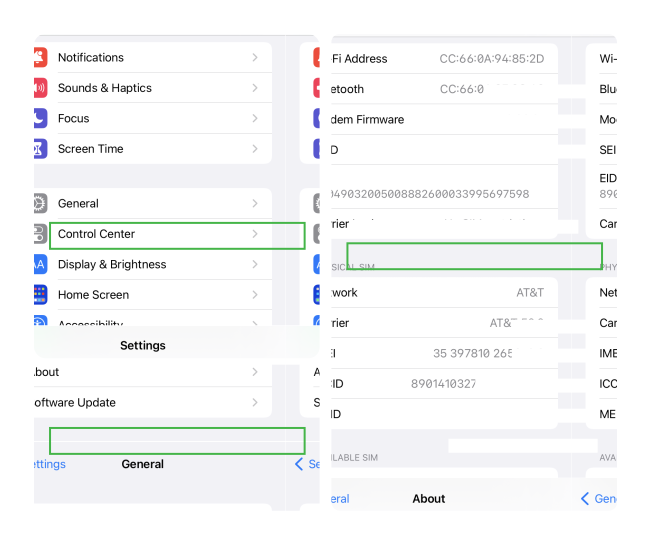

Check your iOS device is network unlocked
Go to Settings > General > About > Carrier Lock
If you see No SIM restrictions then your phone is unlocked. Otherwise read these instructions to unlock your phone from your carrier.
If you can't find Carrier Lock on the About screen of your device, please try updating your iOS version and check again. If that doesn't work, check out one of the other methods detailed in this article.
Open your email on a different device
On a different device (any another phone, tablet, or computer), open the email you received from GIANT Connect after purchasing the eSIM.
Be sure you can see the QR code on the screen.
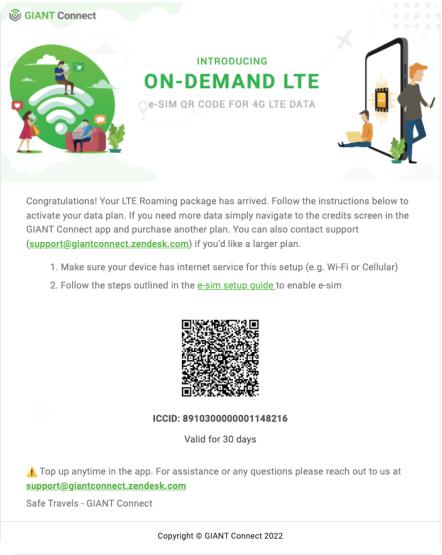


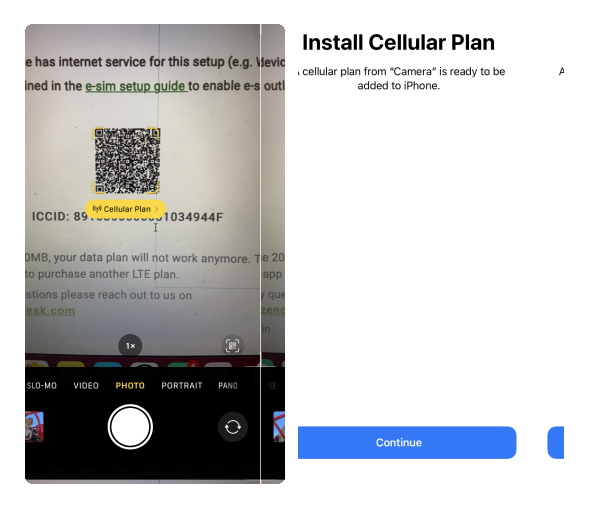

Scan the QR Code with your iOS device
Using the Camera on your iOS device, scan the QR code in the email.
Tap the cellular Plan prompt below the QR code to be taken to the install Cellular Plan screen.
Give your new cellular plan and give it a label
Select your new cellular plan and give it a label, for example "Travelling" if you plan to use this plan when you're traveling.
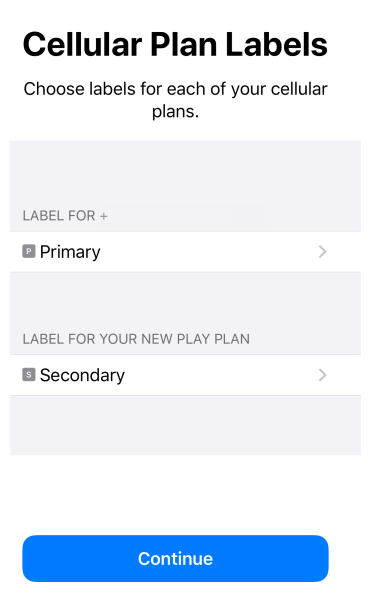

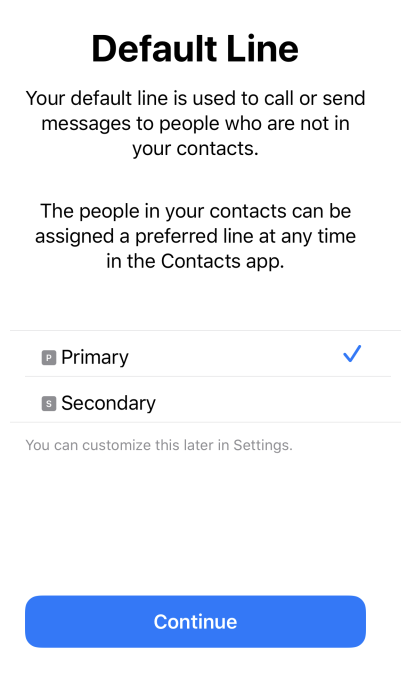

Set the Default Line as "Primary"
Using the Camera on your iOS device, scan the QR Code in the email.
Tap the cellular Plan prompt below the QR code to be taken to the install Cellular plan screen.
Select which cellular plan to use for iMessage, Facetime and Apple ID.
Keep this as Primary while you are in your home country.
Toggle it to Secondary later when traveling to countries where you would prefer eSIM coverage over roaming coverage from your primary carrier.
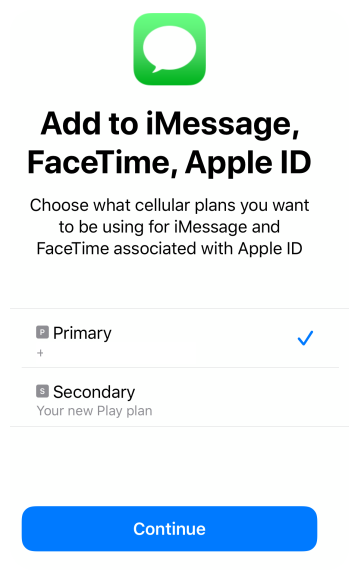

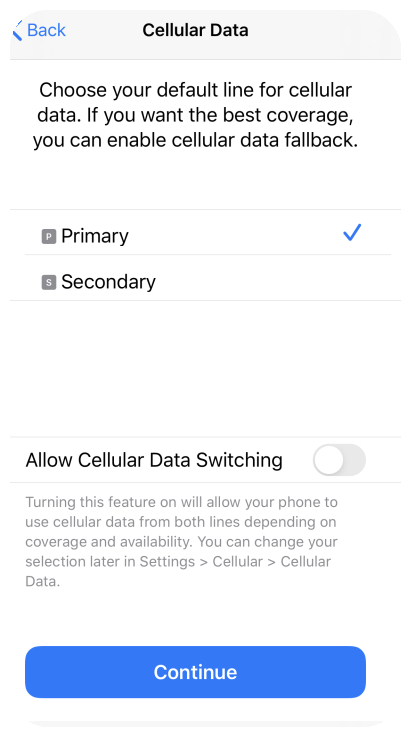


Similarly, for cellular data, choose Primary for now then switch to Secondary while Travelling.
You may also select "Allow Cellular Data Switching" to allow your device to switch between networks depending on coverage.
You can change your selection later in Settings > Cellular > Cellular Data.
Choose to update contacts' preferred line later
This is so that calling contacts will always use the primary cellular network. Click Done.
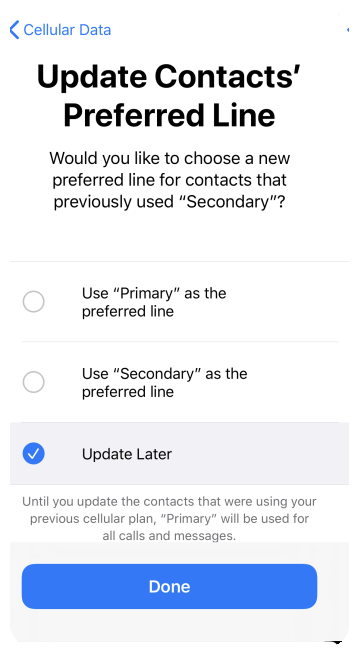

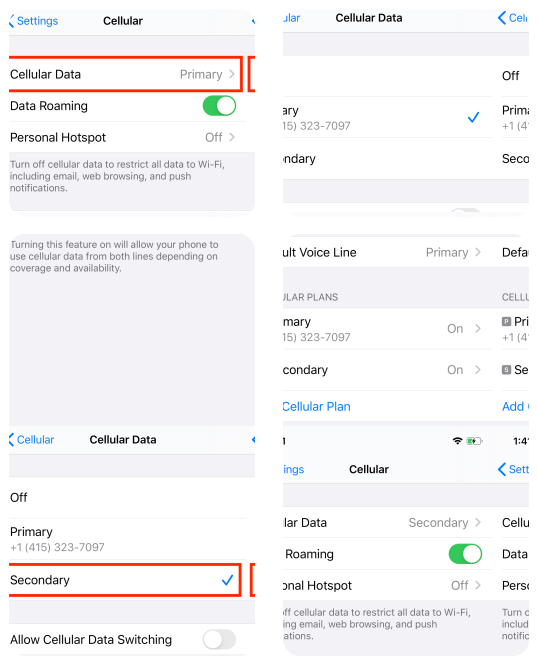

On clicking done, you will be taken to the main Cellular settings screen where you can access the Cellular Data screen
Here you can toggle between your Primary and Secondary data plans at any time.
change the way you stay connected?
manage, and top up your eSIMs anytime, anywhere!



A global connectivity economy that is
owned and governed by its users.